
Activating and stopping automatic direct debit, and what to do if it fails
With direct debit (SEPA) you pay your invoices automatically from now on. This way the renewal of your products and domains always goes smoothly and you never have to think about an invoice again. Below you can read how to turn direct debit on, how to stop it, and what to do if a direct debit fails.
Activating direct debit
- Log in to My WebOké.
- Go to My Invoices and choose the Direct Debit tab.
- Click Activate Direct Debit.
- You'll be taken to the payment page of our payment partner Mollie. There, pay a one-time amount of € 0.01 via iDEAL, from the account we may collect from. With this payment you confirm the SEPA mandate.
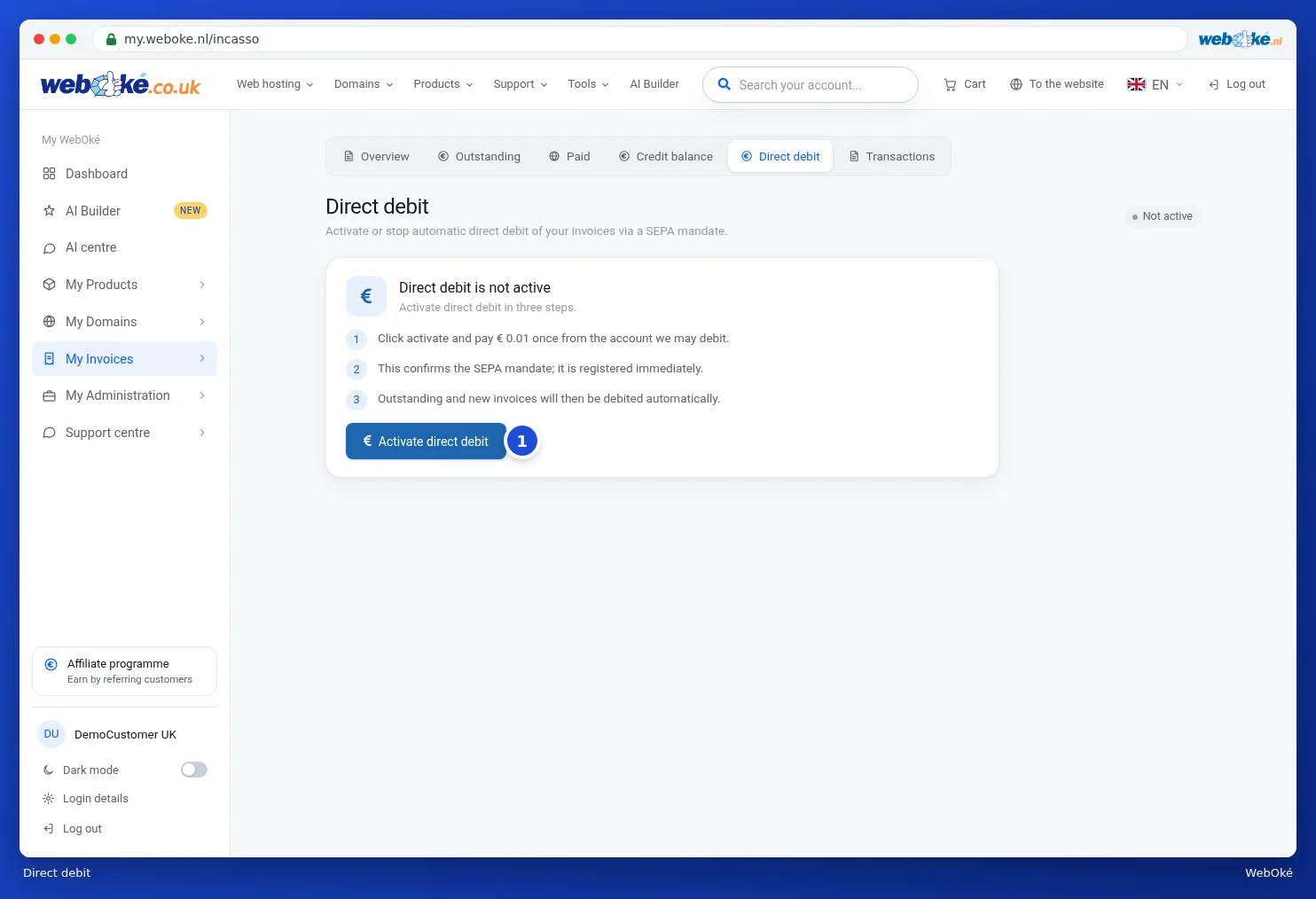
As soon as the payment is completed, direct debit is active. On the same page you'll then see your mandate number, your account number, and the account holder's name. Your default payment method becomes Direct Debit, including for invoices that are still outstanding. We collect those automatically, followed by all your new invoices.
What do you see when a collection takes place?
As soon as we start a direct debit collection for an invoice, the invoice shows as Processing. You don't need to do anything. Once the amount has been collected, the invoice shows as paid. Don't pay an invoice that's being processed yourself again.
Did the collection fail?
If a collection fails, the invoice goes back to Unpaid. We don't automatically retry collecting that invoice. Common causes:
- Insufficient balance on the account at the time of collection.
- The mandate has stopped, for example because you reversed a direct debit (chargeback). In case of a chargeback, the direct debit agreement stops automatically.
- The account has changed or been closed, or your bank refuses direct debits.
Here's how to fix it:
- Pay the outstanding invoice yourself: go to My Invoices › Outstanding and click Pay next to the invoice. See Paying an invoice.
- Check the Direct Debit tab to see if the direct debit is still active. If it has stopped, or you want to collect from a different account, activate it again as described above.
We don't send a separate email about a failed collection. You will, however, receive the regular payment reminders for the outstanding invoice. We don't charge any reminder fees.
Stopping direct debit
Go to My Invoices › Direct Debit and click Stop Direct Debit. The mandate will then be revoked and your default payment method will switch back to Bank Transfer. After that, you'll pay new invoices yourself. You can reactivate direct debit at any time.
Good to know
- Don't reverse a payment if something's wrong; contact us instead. We'll sort it out together and refund you if needed.
- Your default payment method is shown under My Details.
- Do you see a message that direct debit isn't possible for your account, or does activating it fail? Contact us and we'll take a look with you.
Detailed explanation with screenshots: Setting up or stopping direct debit in the My WebOké manual.