
Add mailbox on Android (Gmail app and Samsung Email)
Want to use your WebOké email address on your Android phone? In the Gmail app or in Samsung Email, add it as an IMAP account. Below are the steps and the settings you need.
What you need
- Your full email address, for example info@yourdomain.nl, and the password for that mailbox.
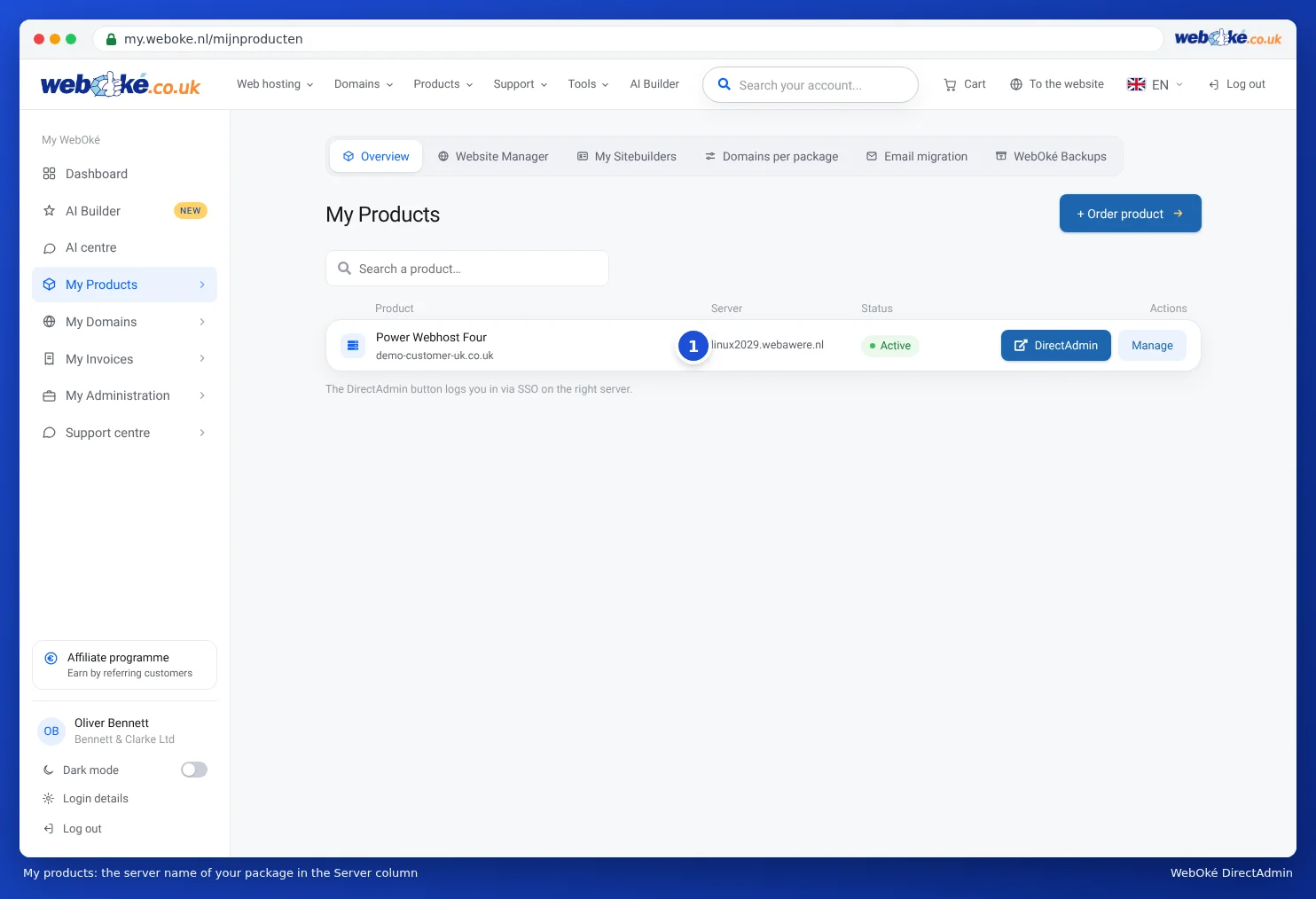
- The server name: your domain name (yourdomain.nl) if your website is hosted with WebOké, or the server name of your package, such as linux2023.webawere.nl.
Do you only have an email package with us (such as Email One) while your website is hosted elsewhere? Then always use the server name of your package, not your domain name. You can find the server name in My WebOké under My Products, in the Server column, and in the welcome email.
In the Gmail app
- Open the Gmail app and tap your profile picture or initial in the top right corner.
- Tap Add another account and choose Other (so not Google, Outlook or Exchange).
- Enter your email address and tap Manual setup. Choose Personal (IMAP).
- Enter the password for your mailbox and tap Next.
- Incoming server: the username is your full email address, the server is your domain name or server name. Choose SSL/TLS with port 993 if the app asks for it.
- Outgoing server: leave require sign-in on, with your full email address and password. The server is the same name as incoming. Choose STARTTLS with port 587, or SSL/TLS with port 465.
- Choose how often the app should sync and give the account a name if you like. Done.
In Samsung Email or another mail app
This works in the same way. Add a new account, choose manual setup or "other", choose IMAP and enter the details below. The names of the buttons differ per phone and per version of the app.
Account type       IMAP
Incoming server    yourdomain.nl or the server name, port 993, SSL/TLS
Outgoing server    same name, port 587 with STARTTLS (or 465 with SSL/TLS)
Username           your full email address (both incoming and outgoing)
Password           the password of the mailbox
Outgoing sign-in   on
Not working?
- Incorrect username or password: enter the full email address as the username, including for the outgoing server. Test the password in the webmail.
- Message about a certificate: use the server name of your package as the incoming and outgoing server. Don't use mail.yourdomain.nl, imap.yourdomain.nl or smtp.yourdomain.nl.
- Receiving works, sending doesn't: check port 587 or 465 and whether sign-in for the outgoing server is enabled. Also read I can't send email.
- Suddenly no mail and website from your wifi? Then your IP address might be blocked due to too many failed login attempts. Read Am I blocked? Your IP address and our firewall.
It's best not to let Gmail on your computer fetch or forward your mail. Google no longer fetches mail from other accounts, and forwarded mail often ends up in spam. Instead, add your address in the app, as described above.
Using an iPhone? Then read Adding a mailbox to the iPhone (Apple Mail).
Detailed explanation: Android and the Gmail app and All settings at a glance: servers, ports and security in the DirectAdmin manual.
Was this article helpful?