
Chapter 14 · 14.6
Errors after a PHP upgrade and finding the error log
You've increased the PHP version and now your website is blank, shows an error message, or part of it no longer works. This is almost always caused by a plugin, a theme or custom code that isn't compatible with the new version. Don't panic: you can roll back to the old version in a minute, then calmly work out what's wrong.
Step 1: roll back to the old version
Go to Select PHP version, choose the version you had before and click Apply (see Selecting the PHP version (Select PHP version)). Your website will then work as before straight away. If you changed extensions or options for the new version, these will be kept for your next attempt.
Step 2: find the error message in the error log
PHP writes errors to your domain's error log. This shows exactly which file and which line is causing the problem.
- In DirectAdmin, under System Info & Files, click Site summary & logs.
- Next to your domain, click Error log.
- Look at the last lines, at the bottom. Look for lines with PHP Fatal error, PHP Parse error or PHP Warning (1).
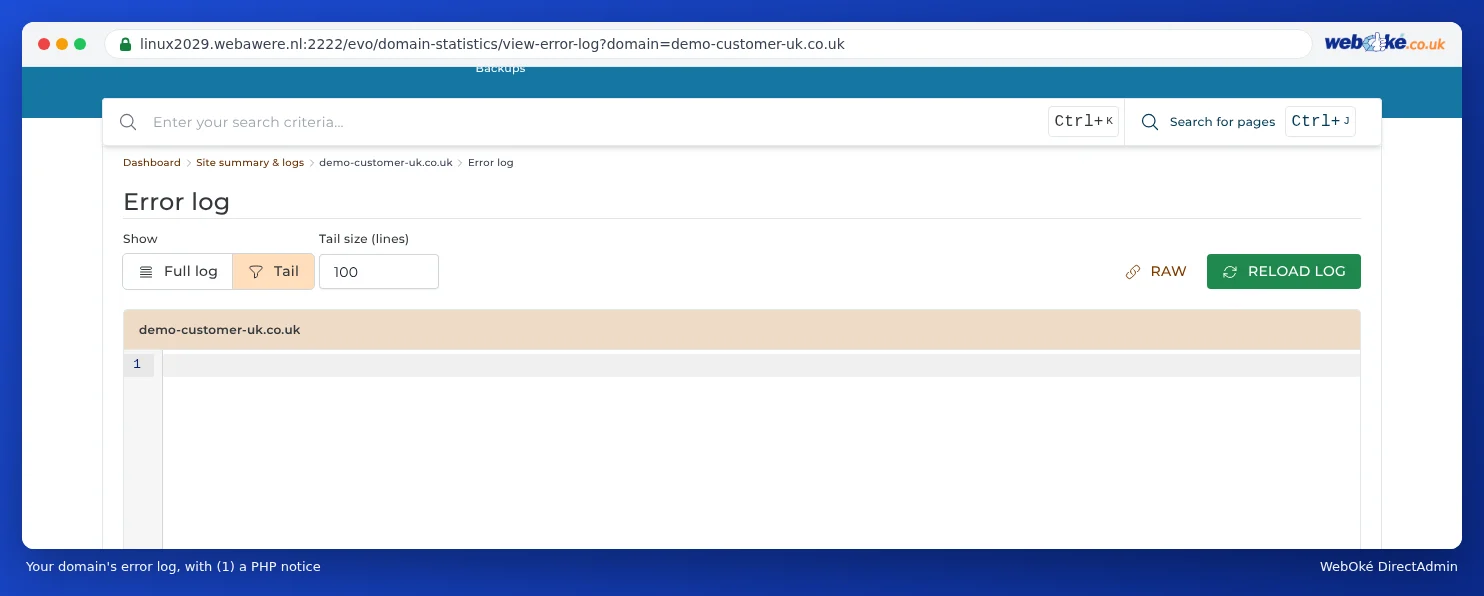
You can read more about the logs in Site summary & logs: the error log and the access log.
Step 3: understand the message
The message shows the file's path. This usually tells you which plugin or theme is the culprit. A few examples:
| What you see in the message | Meaning |
|---|---|
| .../wp-content/plugins/plugin-name/... | That plugin doesn't work with the new version. Update it, or look for an alternative if it's no longer maintained. |
| .../wp-content/themes/theme-name/... | Your theme is too old. Update it or ask the developer for an update. |
| Call to undefined function mysql_connect() | Very old code that still uses functions from before PHP 7. This needs to be rewritten. |
| Call to undefined function with a different function name | An extension is often missing. Check which extension belongs to that function and enable it (see Enabling and disabling PHP extensions). |
| Allowed memory size of ... bytes exhausted | The script doesn't have enough memory. Increase memory_limit (see PHP options: upload_max_filesize, memory_limit and max_execution_time). |
| Maximum execution time of ... seconds exceeded | The script took too long. Increase max_execution_time, or find out why it's so slow. |
Step 4: update and try again
- Make a backup (see Backup and Restore: creating your own backup in DirectAdmin).
- Update WordPress (or your other software), your theme and all your plugins, while the old PHP version is still active.
- Remove plugins you don't use.
- Turn on the new PHP version again and test your website again. Check the error log again as well.
Tip: Want to test first without affecting visitors? Use Installatron to make a copy of your site on a subdomain (see Cloning and creating a staging environment) and switch only that folder to the new version with .htaccess (see PHP settings per directory and via .htaccess).
Temporarily showing errors on the page
Do you only see a blank screen, with nothing useful in the error log? Then you can temporarily show errors on the page itself. In Select PHP version, on the Options tab, tick the box next to display_errors. Reload the page: now you'll see the error message. Turn display_errors off again straight away afterwards, as such a message can reveal information about your website to anyone.
If you use WordPress, you can also do this with these lines in wp-config.php, above the line That's all, stop editing!: define('WP_DEBUG', true); and define('WP_DEBUG_LOG', true);. WordPress will then write the errors to wp-content/debug.log. Remove them again afterwards, or set them to false.
Prefer to have it solved for you?
Not working out, or has your website not been updated for years? With the PHP upgrade, we'll make your website compatible with a current PHP version, for a fixed price. If it doesn't work out, you'll get your money back.