
Chapter 13 · 13.6
Making and restoring backups in Installatron
Installatron can make a backup of any installation: the files and the database together. Handy just before a big change. But please note: these backups are stored on your own package and count towards your storage space.
Making a backup
- Open Installatron and go to My Applications.
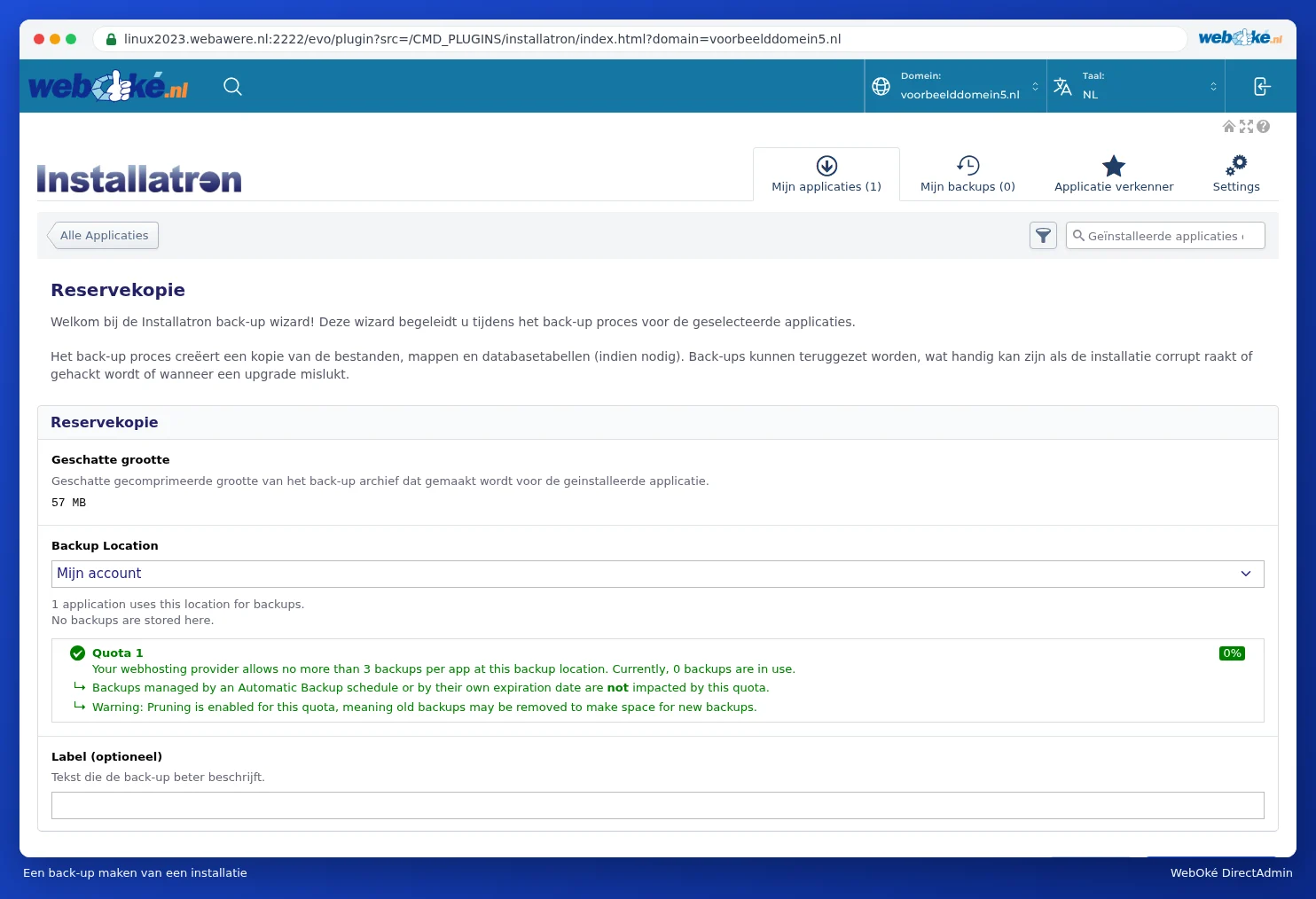
- Click Backup next to the installation. The Backup wizard opens and shows the estimated size of the backup.
- Leave Backup Location set to My Account (your own package). If you like, give the backup a description under Label (optional), such as "before new theme".
- Click Backup. After a while, the backup appears under My Backups.

Restoring, downloading or deleting a backup
Under My Backups, you see your backups per website, with the date, when the backup expires (for a backup you make yourself: Never), the version, the size and the location.
- Go to My Backups.
- Click the button with the three lines ≡ next to the backup.
- Choose what you want:
- restore this backup: the current website is replaced by the version from the backup, including the database;
- download: download the backup as a .tar.gz file to your computer;
- delete: delete the backup. In the wizard, tick that you understand this is permanent and click Delete. Your website itself remains in place;
- edit backup note: change the backup's label.
Please note: You'll lose everything you've changed since making the backup, such as new posts, orders or comments, if you restore it.
Backups fill up your disk space
This is one of the questions we get most often: "My storage is filling up, but I haven't added anything." This is often caused by Installatron backups. Each backup is a complete, packaged copy of your website and database. For a bare WordPress install of 115 MB, the backup was already 32 MB; for a site with lots of photos, this quickly adds up to hundreds of MB per backup. They're stored in the application_backups folder in your package's main directory.
- With us, Installatron keeps a maximum of three backups per installation on your account. If you make another one, the oldest may be cleared out.
- Backups made during an automatic update disappear by themselves after one day.
- If you've turned on Automatic Backup (for example weekly and monthly), new ones keep being added.
Clear out old backups under My Backups, or turn off automatic backups if you don't need them.
Do you actually need these backups?
WebOké itself makes a daily backup of your entire package, including your websites and databases. These aren't stored on your own package, so they don't count towards your storage. You restore them in My WebOké with WebOké Backups (see Can I also do this in My WebOké? WebOké Backups). A backup in Installatron is mainly handy just before a big change, so you can quickly go back if needed. After that, you can delete it again.
Tip: Want a copy outside WebOké? Download the backup from My Backups to your own computer and then remove it from your package.