
Chapter 3 · 3.7
Secure passwords and what to do if a password is leaked
A good password is the most important protection for your website and email. In this article, you'll read which passwords belong to your package, how to make them secure, and what to do if one is leaked.
Which passwords do you have?
| Password | What's it for? | Changing it |
|---|---|---|
| My WebOké | Your customer environment, and with it, also the button to DirectAdmin. | My WebOké, My Administration, Login Details |
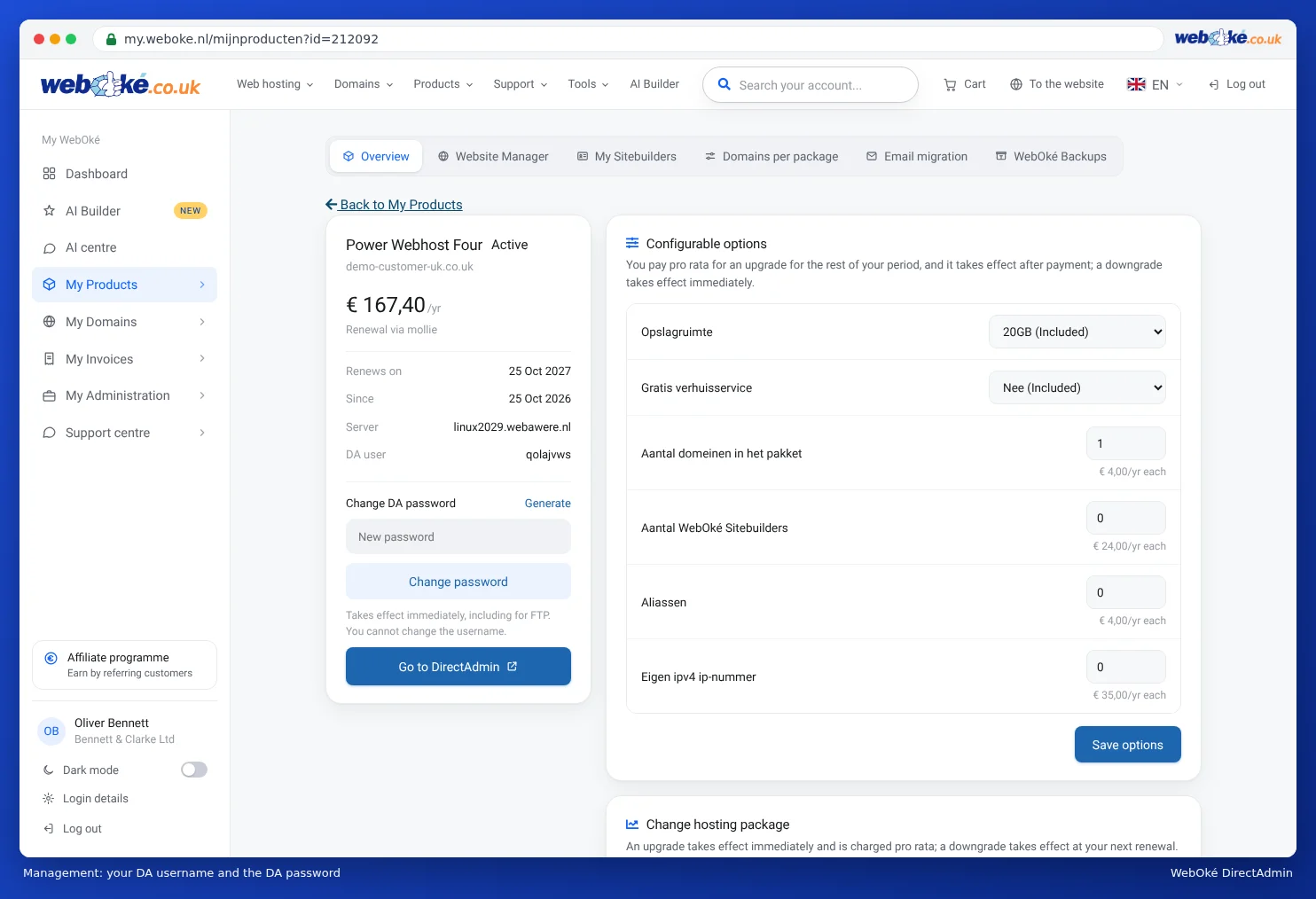
| DA password | Logging in directly to DirectAdmin and the default FTP account. | Setting or changing your DA password |
| Mailbox | Every email address has its own password. | Changing the password of an email address |
| FTP account | Every additional FTP account has its own password. | Creating and managing FTP accounts |
| Database | The database user of your website. Also found in your website's settings, such as wp-config.php. | Database users, privileges and passwords |
| Your website | For example, the WordPress administrator. You manage this within your website itself. | In your website |
These passwords are independent of each other. If you change your DA password, your mailbox, database and website passwords don't change.
A secure password
- Long: at least 15 characters. Length makes a password much stronger than odd characters. A passphrase of five or six randomly chosen words is strong yet easy to remember.
- Truly random: let a password manager choose the password or words for you. A password you come up with yourself, such as a word with a year and an exclamation mark, almost always follows a pattern that attackers try first.
- Unique: use each password in only one place. If it's leaked from another website, your package stays secure.
- Not guessable: no name, date of birth, company name or domain name.
- Stored in a password manager, such as Bitwarden, 1Password or your browser's password manager. These can also generate strong passwords for you. In My WebOké, you can do this with Generate next to the DA password.
- Not shared via email, WhatsApp or a note on your screen.
- Not changed without reason: you don't need to change a strong, unique password every few months. Do change it immediately if there's a reason, for example a notification of a leak or a colleague leaving who knew the password.
These recommendations follow the guidelines of the American NIST (SP 800-63B-4) and the advice of the Dutch National Cyber Security Centre. Some systems also have their own requirements, such as a capital letter, a number or a special character. If so, add these to your long password.
Extra protection
- Turn on Two-Step Authentication in DirectAdmin (see Setting up Two-Step Authentication) and use an authenticator app for My WebOké.
- Don't give others access using your own password. Create a separate FTP account for a web builder (see Creating and managing FTP accounts) or a login key with an expiry date (see Login Keys: logging in for scripts and programs).
- Log out on a computer you share with others (see Logging out and closing safely).
Do you think a password has been leaked?
For example, because you received a data breach notification, you see an unfamiliar IP address in the Login History, or email is suddenly being sent on your behalf. If so, do the following:
- Change the password immediately. If it concerns DirectAdmin, set a new DA password in My WebOké (see Setting or changing your DA password). This also works if someone else has already changed the old password.
- End all other sessions in DirectAdmin: Profile, Sessions tab, END ALL OTHERS (see Logging out and closing safely).
- Check the Login History for unfamiliar IP addresses (see Login History: who logged in and when?).
- Check the Login Keys and remove any keys you don't recognise (see Login Keys: logging in for scripts and programs).
- Check your FTP accounts and remove any accounts you don't recognise (see Creating and managing FTP accounts).
- Check your email: look at Forwarders to see if a forward to an unfamiliar address has been added, and change the passwords of your mailboxes (see Forwarders: forwarding mail to another address and Changing the password of an email address). If spam is being sent from your address, read What to do if your e-mail address has been misused.
- Have your website scanned for malware with Imunify360 (see Imunify360: scanning your website for malware). If your website has been hacked, follow My website has been hacked: step-by-step plan.
- Turn on Two-Step Authentication (see Setting up Two-Step Authentication).
- Change the password in other places too where you used the same password.
Please note: After changing a mailbox password, also update the password in your email program on your computer and phone. If a device keeps trying with the old password, the server will block your IP address after a while (see Solving login problems).
Can I do this in My WebOké too?
Yes. You can set your DA password in My WebOké without knowing the old one: My Products, Admin, Change DA password block. The new password takes effect immediately, including for the default FTP account.
Tip: Not sure if something's wrong? Create a ticket via the Support centre. We can check the server logs for you.