
Chapter 7 · 7.2
Migrating email to WebOké (including from Microsoft 365)
Watch it in a short video
Coming from another provider, such as Gmail, Outlook, Ziggo, KPN or your previous hosting company? With the Email migration tool you copy your existing mail to your mailbox at WebOké, including all your folders. Your mail is copied, not moved: everything stays in place at your old provider.
Before you start
- First create the mailbox at WebOké that the mail should go into, see Email with WebOké: mailboxes, webmail and your email program.
- Make sure you know the password of your old mailbox, and the name of your old provider's mail server. For well-known providers, we fill that in for you.
- Using Gmail? Then your regular password won't work. Turn on two-step verification in your Google account and create an app password there. Enter that in the tool.
How to move your mail
Go to My Products and click Email migration in the tab bar. The tool has five steps: Source, Destination, Review, Transfer and Done.

- Source: choose your old provider (1). Not listed? Choose Other provider. Enter the email address of your old mailbox (2), the password and the mail server (IMAP). Click Next: destination mailbox (3). We test the connection straight away and show how many messages and folders we find.
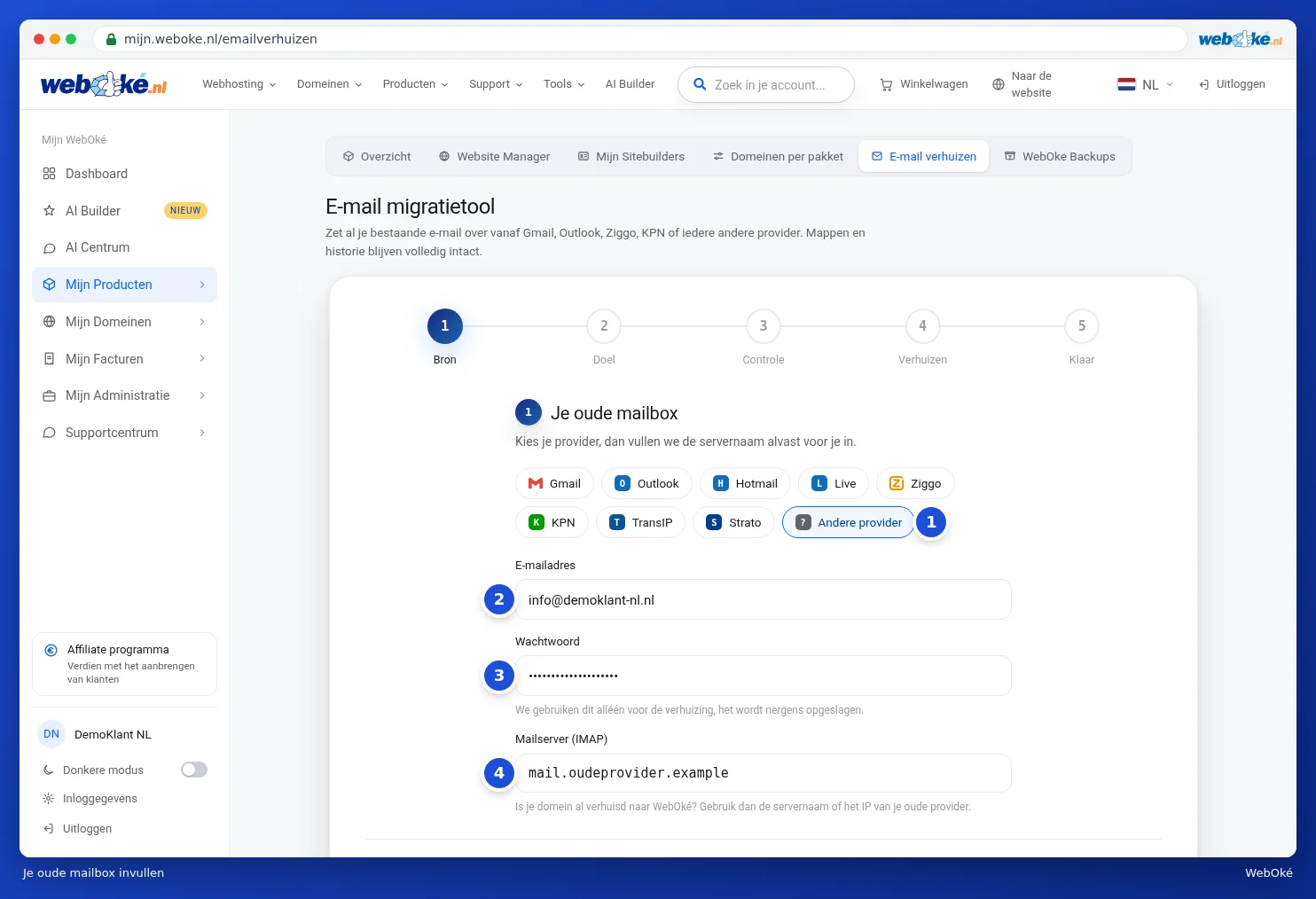
In the example above, Other provider has been chosen (1) and the email address (2), password (3) and mail server (4) have been filled in.
- Destination: enter the email address of your mailbox at WebOké and its password. If your domain's mail already points to WebOké, we fill in the server name for you. Otherwise, enter your package's server name, which you'll find on the product page and in your welcome email. Click Next: review.
- Review: you'll see which mailbox the mail is moving from and to. Both mailboxes have been tested. If you like, enter an email address where we can let you know when the migration is done. Click Start migration.
- Transfer: you'll see how many messages and folders have already been copied. The migration continues on our servers, even if you close the page.
- Done: use Migrate another mailbox to do the next one, or Log in to webmail to view the result.
In the video accompanying this article, you'll see the Source step filled in with example details.
Migrating from Microsoft (Outlook, Hotmail, Live, Microsoft 365)
Microsoft no longer accepts a password for retrieving mail, not even an app password. If you choose Outlook, Hotmail or Live under Source (1), you'll see the Sign in with Microsoft button instead of the password field (2). Have Microsoft 365 with your own domain name? Then choose Outlook, or choose Other provider and enter outlook.office365.com as the mail server.
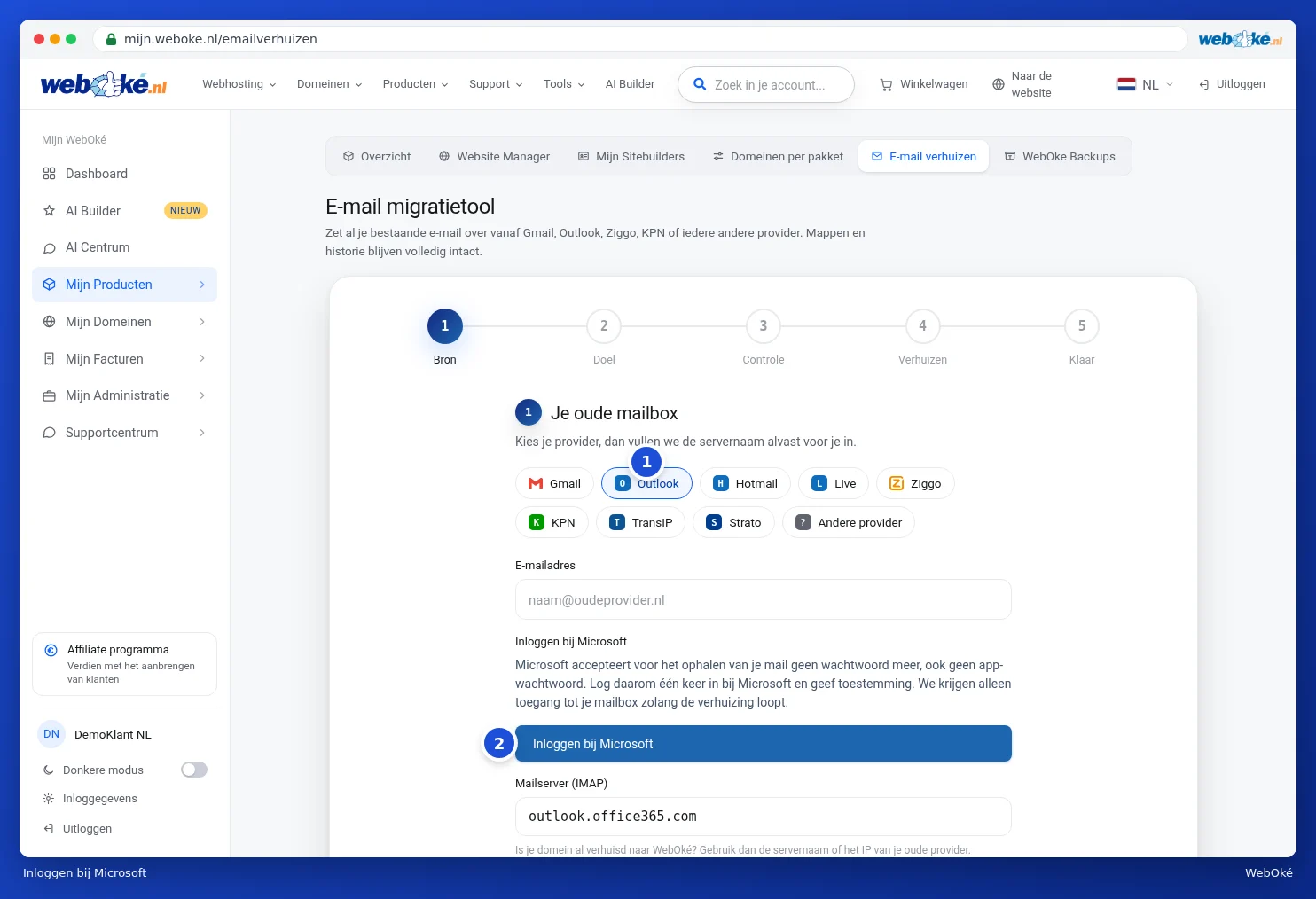
- Click Sign in with Microsoft. You'll get a link to the Microsoft sign-in page and a code. Use Copy to copy the code.
- Open the link, enter the code, sign in with the Microsoft account for this mailbox and click Accept.
- Back in the tool, you'll see that you're signed in to Microsoft, along with the account. Continue as described above. If the account isn't right, choose Use another account.
We only get access to your mailbox while the migration is running.
Please note: in a business Microsoft 365 environment, your administrator may have set it up so that you can't give permission yourself. In that case, you'll see a message. Ask your administrator to approve WebOké Email migration, or export your mail with Outlook to a .pst file.
If something goes wrong
- Login refused: the password is incorrect. For Gmail, you need an app password.
- No connection: check the server name. Has your domain already been transferred to WebOké? Then use the server name or IP address of your old provider for your old mailbox, not your domain name.
- Your WebOké mailbox is full: the migration pauses, nothing is lost. Increase the mailbox size in DirectAdmin and click Try again. The migration resumes where it left off.
- Folders with calendar items, contacts or tasks aren't included, only email. You'll see in advance which folders won't be migrated.
Tip: also moving your domain name? Read The transfer centre: transferring domains to WebOké. Only switch over your mail once the mailbox at WebOké is ready, and then migrate once more afterwards: messages that have already been copied will be skipped.