
Chapter 5 · 5.13
Renewal and auto-renewal
You register a domain name for a period, usually a year. By default, it's renewed automatically. This way, you won't lose your domain just because you forgot a date.
Where do you see the renewal?
At the top of the domain page, you'll find the Renews yearly switch (1). Below it is the card with the renewal details (2):
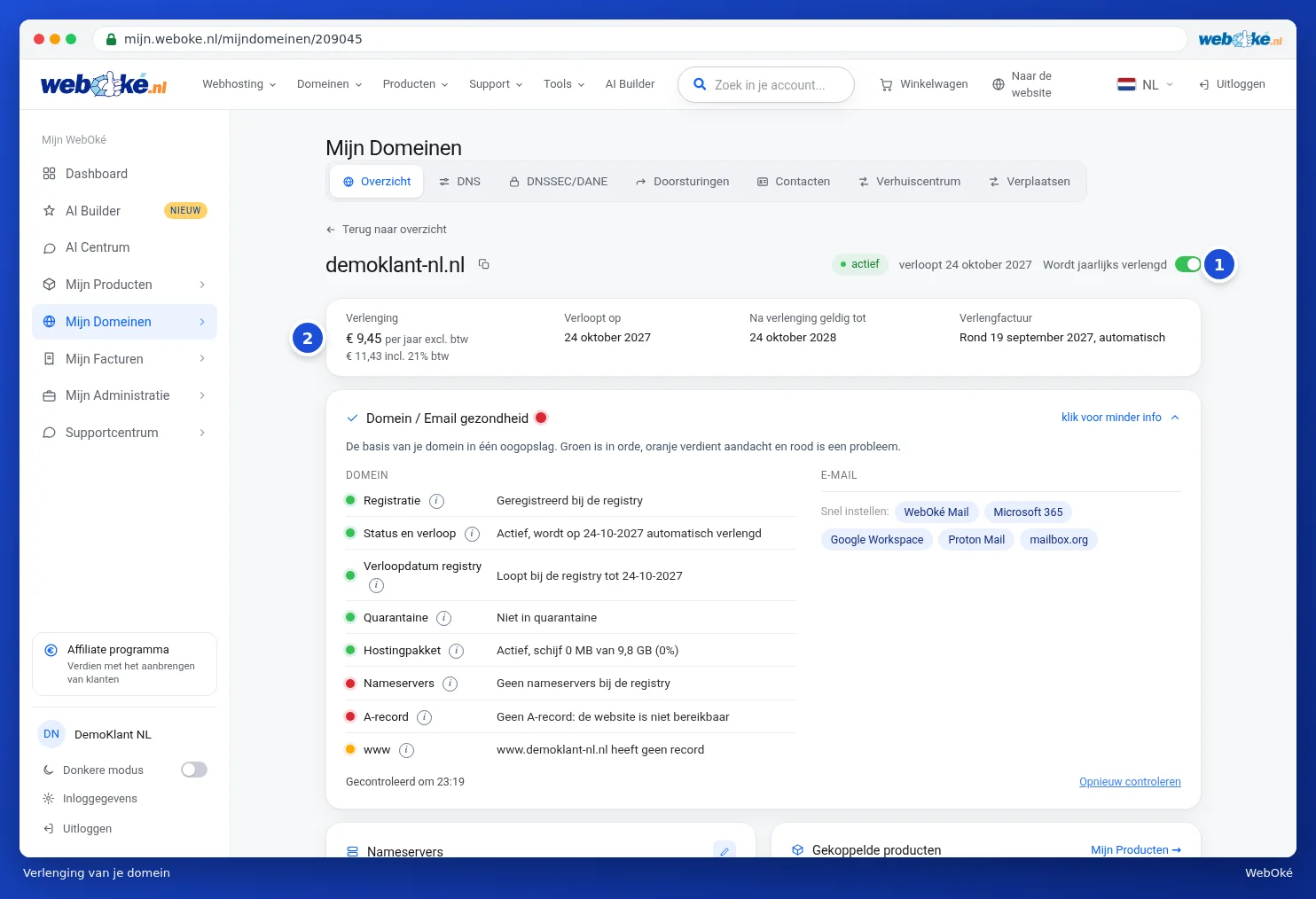
- Renewal: the cost of renewing, excluding and including VAT.
- Expires on: the current expiry date.
- Valid until after renewal: the new expiry date once the domain has been renewed.
- Renewal invoice: when the invoice for the renewal is generated automatically. If a renewal invoice is already outstanding, you'll see the invoice number here with a View invoice link.
In the My Domains overview, you can see under each domain name whether auto-renewal is on or off.
Tip: if you pay your renewal invoices automatically by direct debit, you won't need to think about this at all. See Setting up or stopping direct debit. You can read how to pay an invoice in Paying an invoice (including several at once).
Switching off auto-renewal
Switching off auto-renewal is the same as cancelling your domain. So if you click the Renews yearly switch, the Cancel domain window opens.
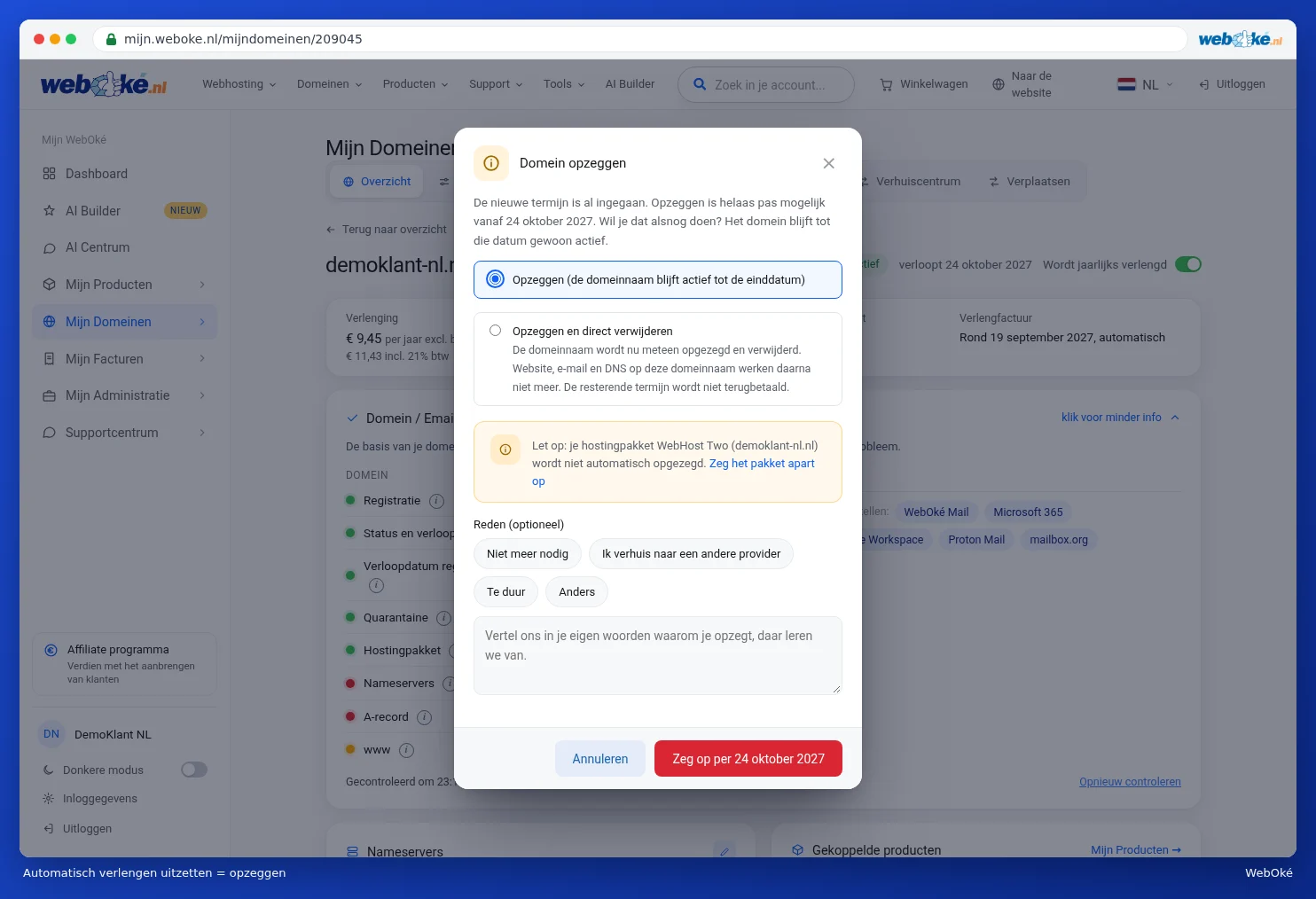
You can read about what to choose in this window in Cancelling or transferring a domain. If you're not sure, click Cancel. Nothing will change.
After cancelling, the domain page will show Will not be renewed. along with the date the domain will expire. No further costs will follow.
Switching it back on
Changed your mind? Simply switch the switch back on, or click Undo cancellation in the Advanced Features card. You'll then see a message confirming that auto-renewal is on again. To do this for several domains at once, use the Auto-renewal on button in the overview (see Your domain summary).
Please note: a domain that isn't renewed in time will go offline after the expiry date. Your website and email on that domain will then stop working, and after a while the name will become available for anyone to register.