
Chapter 11 · 11.4
Collectives: a shared knowledge base for your team or association
Available in packages with Office. Collectives is included in your WebOké Nextcloud as soon as your package has at least one Office Suite licence. Then everyone in your package can use Collectives. See Which apps are included in my package?.
A collective is a shared reference work: a handbook for your association, agreements within your team, or a family wiki with password tips and the manual for the boiler. Everyone in the collective can read and edit pages. Pages can have subpages, so you can build a clear tree structure.
Creating a collective
- Open Collectives from the app menu.
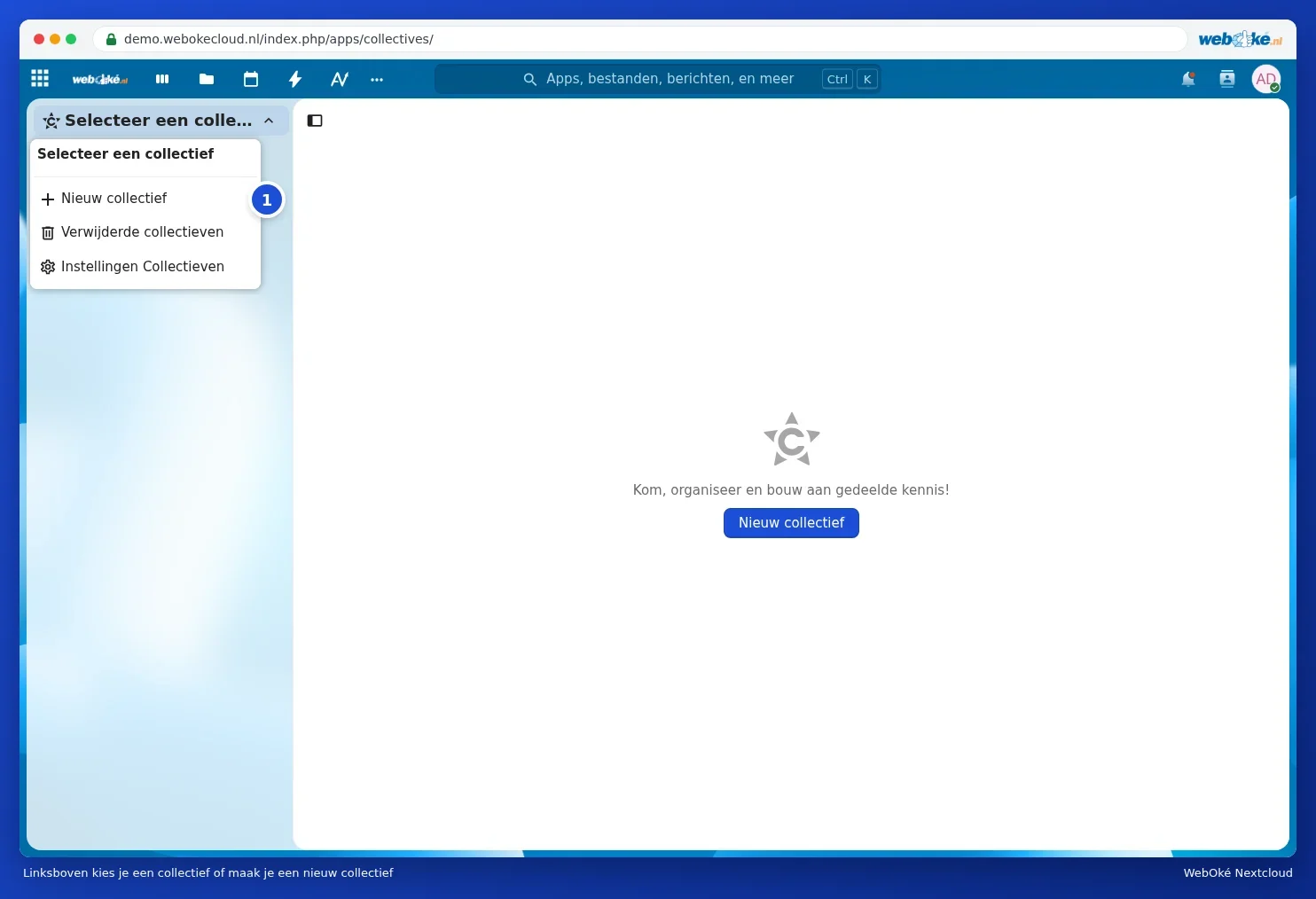
- Click Select a collective in the top left and choose New collective (1). If you don't have a collective yet, the New collective button is also shown in the middle of the screen.
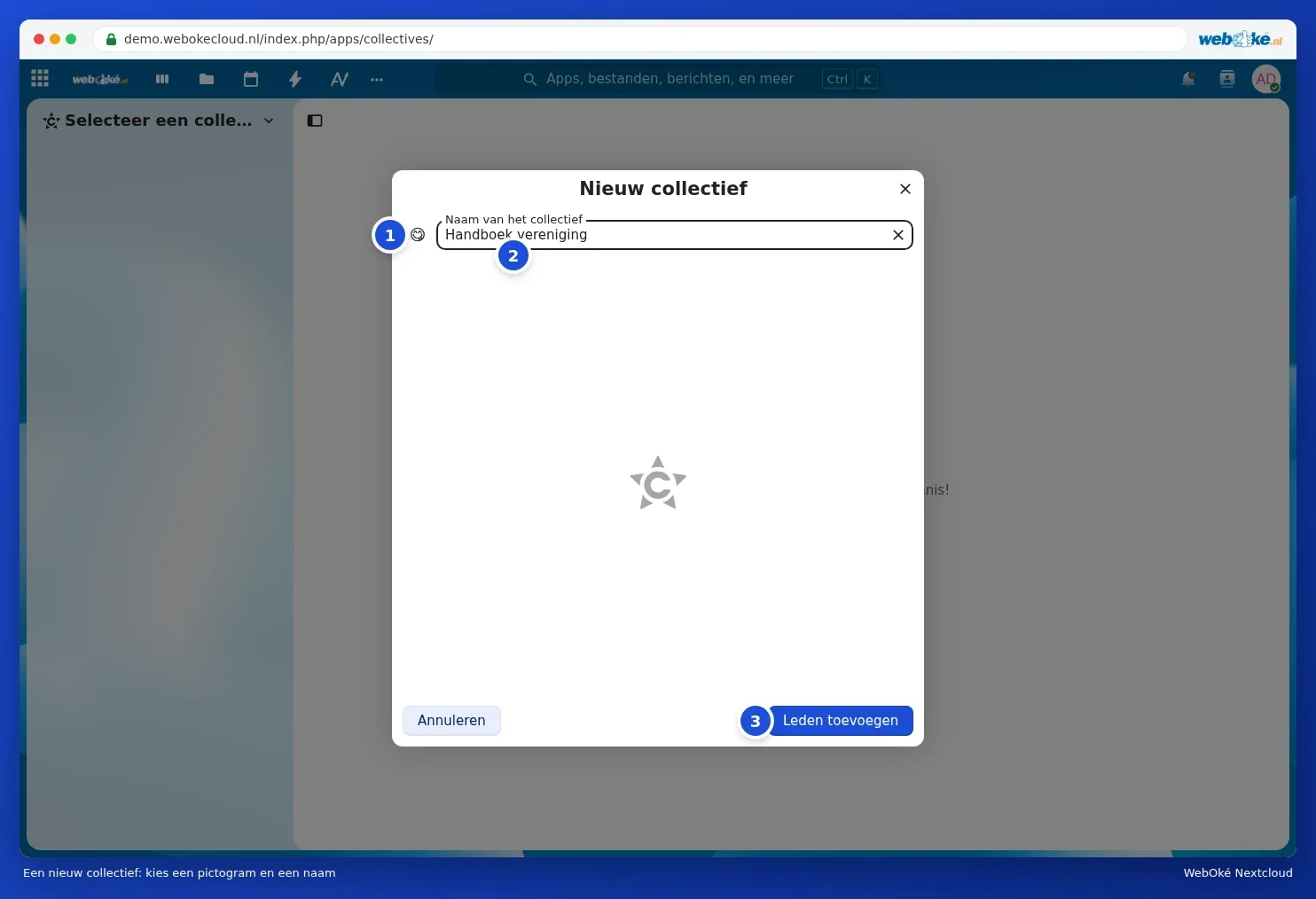
- In the New collective window, use the smiley icon (1) to choose an icon and enter a name under Name of the collective (2).
- Click Add members (3).
- Under Search accounts, groups, teams (1), type the names of the people, groups or teams that should be included and click them. At the top you can see who's already in.
- Click Create (2). If you don't want to add anyone yet, the button is called Create without members.

Every collective has a team with the same name. Anyone you add to that team later also joins the collective. See Creating teams and sharing a folder with your whole team about teams.
Writing pages

- Every collective starts with a Home page. Click Edit (3) in the top right and start typing. Everything is saved automatically.
- Use the plus icon at the top of the list, Add a page (2), to create a new page. Use the plus icon next to a page to create a subpage, so you build a tree of chapters.
- Use Search pages (1) to find a page or a word across all pages.
- Formatting works just like in Notes and Text: headings, lists, tables, images, and links to other pages.
- If two people work on a page at the same time, you see each other's changes instantly.
- Under Members you can see who's in the collective. Use Manage members (4) to add or remove people.
- Restore a deleted page under Deleted pages in the bottom left. Use Last changed by at the top of a page to open the version history.
Where are the pages stored?
Every page is a plain text file (markdown) in your Nextcloud, in a hidden folder called .Collectives. You don't need to do anything there: always work in the Collectives app. You can restore an older version of a page via Last changed by at the top of the page.
Sharing with people outside your Nextcloud
You can share a collective or a single page with a public link. By default, anyone with the link can only read it. This is handy, for example, for publishing your association's house rules online without a separate website.
Cleaning up a collective
The owner can delete a collective via the three dots next to the name in the top left. It then appears under Deleted collectives in the drop-down menu in the top left, where you can restore it or delete it permanently, optionally together with the team that belongs to it.