
Chapter 9 · 9.16
Reading and writing mail, folders and saving attachments to Files
Have you connected your mailbox (see Adding your mailbox to the Email app)? Then you work in the Email app just like in any mail program. Everything you do also really happens in your mailbox: a message you've read is also marked read on your phone, and a message you move appears in the new folder everywhere.
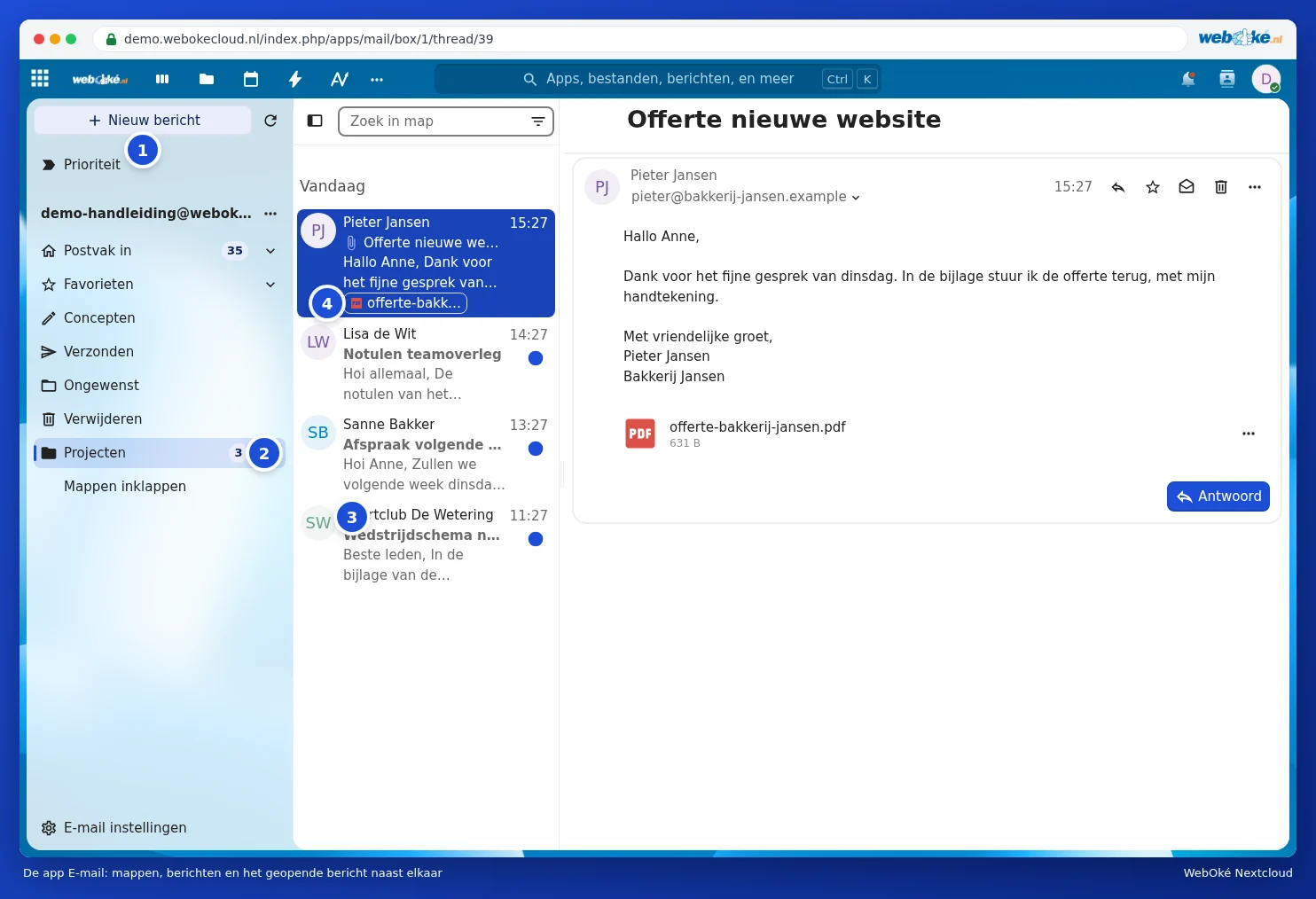
The screen
- New message (1): write an email.
- On the left are your folders (2), such as Inbox, Favourites, Drafts, Sent and Delete. You'll see your own folders after clicking Show all folders. Use Add folder in your account menu to create a new folder.
- In the middle are the messages (3), and on the right is the open message.
- Right at the top is Priority: there the app groups together the messages that matter most to you.
Reading and replying to a message
Click a message to open it. Use Reply below the message to respond straight away. At the top right of the message are buttons to reply, star it, mark it as unread and delete it. In the menu with the three dots you'll find, among other things, Forward, Mark as spam and Move to another folder. You can also drag a message to a folder in the left-hand column.
Writing a new message
- Click New message. A window for your message opens at the bottom right.
- Type a name or email address next to To (1). The app suggests names from your contacts. Use Cc/Bcc to add more recipients.
- Fill in the subject and your message. Use the paperclip (2) to add an attachment, including directly from your Nextcloud files.
- Click Submit (3).
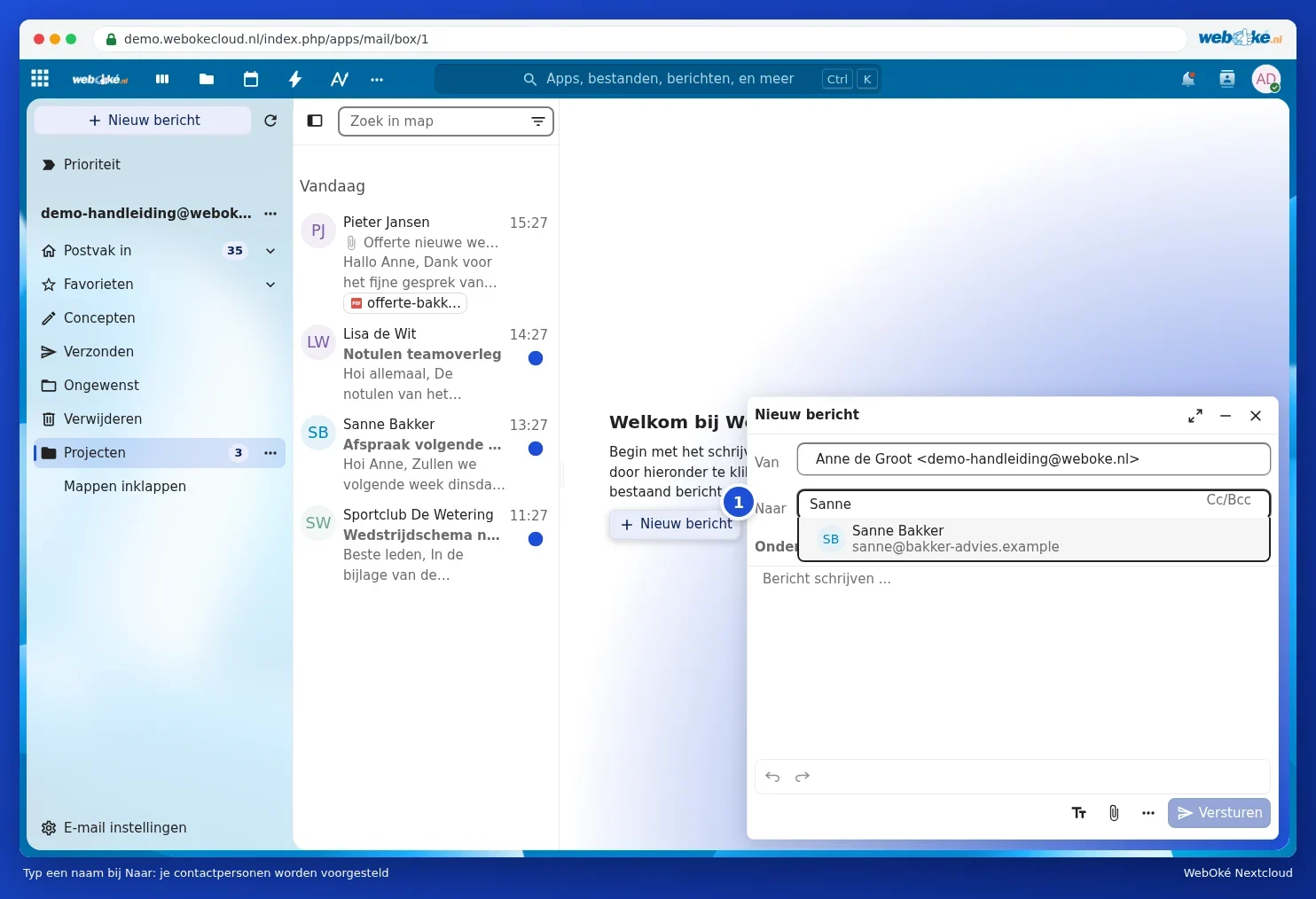

If you close the window without sending, the app saves your message under Drafts.
Tip: it's best not to send large files as an attachment. Share them from your Nextcloud with a link instead (see Creating a public link: viewing, editing, password, expiration date and download limit). The Email app can even do this for you when you add an attachment.
Saving an attachment to your Files
- Open the message with the attachment.
- Click the three dots next to the attachment and choose Save to Files (1). If there are several attachments, you can also save them all at once with Save all to Files.
- Choose the folder in your Nextcloud and click Choose.


The attachment then simply appears among your files, and is therefore also available on your computer and phone. Open a document with Euro-Office, see the Euro-Office manual.
Signature and automatic reply
You set up your signature via your account menu, under Account settings, under Signature. That's also where you'll find the Autoresponder, if your mailbox supports it.
Is the app slow?
The first time, the app reads your entire mailbox. With a mailbox containing tens of thousands of messages, this can take a while; after that, it's faster. If the app stays slow or gets stuck on a folder, contact WebOké (see How to report a problem to WebOké) and let us know which folder is affected.